

Evaluations
Happitu supports two evaluation types: manual evaluations created by quality analysts and Auto evaluations generated by AI. Both use the same scorecards and criteria, but differ in how scores are assigned.
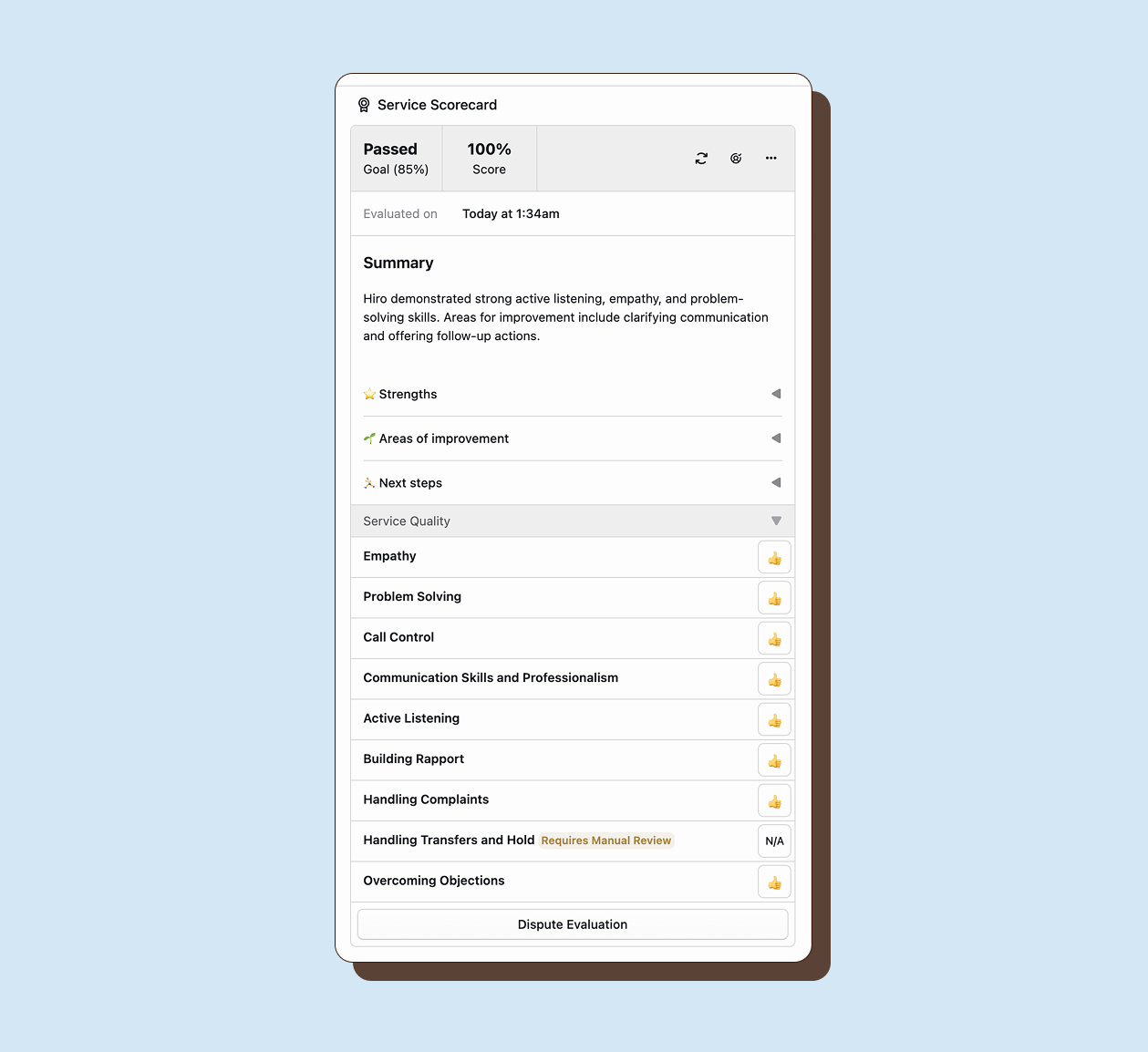
Manual evaluations are created by humans who review interactions and score each criterion. Auto evaluations are created by AI that analyzes transcripts and scores objective criteria automatically. You can identify Auto QA evaluations by the auto badge on criteria and evaluation headers.
Creating manual evaluations
Section titled “Creating manual evaluations”To manually evaluate an interaction, open the interaction detail page and click Manual Evaluation. Select a scorecard from the list of available scorecards that apply to this interaction type. Happitu creates a new evaluation record with empty scores for all criteria.
The evaluation interface shows all sections and criteria from the selected scorecard. Each criterion displays its name, scale type, and current score (initially empty). Hover over a criterion to see its full definition and scoring guidance.
Scoring criteria
Section titled “Scoring criteria”Score each criterion by selecting the appropriate rating from the scale options. For binary scales, click Met or Not Met. For multi-point scales, select the rating that best describes the agent’s performance on that criterion.
As you score criteria, the score will automatically recalculate based on criterion weights. The overall score updates in real time as you work through the evaluation.
Reviewing auto evaluations
Section titled “Reviewing auto evaluations”When Happitu evaluates an interaction, it creates an evaluation record with AI-generated scores. Review these evaluations to verify accuracy and complete any manual criteria.
Identifying auto-scored criteria
Section titled “Identifying auto-scored criteria”Auto-scored criteria display an Auto badge next to the score. These were evaluated by AI. Criteria without this badge were either not enabled for Auto QA or require manual evaluation.
Completing manual criteria
Section titled “Completing manual criteria”Auto QA leaves manual criteria unscored. Complete these by scoring them as you would in a fully manual evaluation. The evaluation is not complete until all criteria are scored or marked N/A.
Marking as reviewed
Section titled “Marking as reviewed”Marking an evaluation as reviewed sets the reviewed timestamp, which you can filter by in Explore. This lets you distinguish evaluations that have had human oversight from those that have not.
Use this flag to track your review workflow. Filter the evaluation list to show only unreviewed evaluations when you want to focus on new or pending reviews. Reviewed evaluations remain visible but are clearly marked as having been processed.
Modifying evaluations
Section titled “Modifying evaluations”You can change scores on any evaluation (even finalized ones) if you have evaluation management permissions. Click any criterion score to change it. Happitu recalculates the overall score automatically.
When you modify an Auto QA evaluation, the Auto badge disappears from overridden criteria, showing they have been manually adjusted.
Re-evaluating a single interaction
Section titled “Re-evaluating a single interaction”When you refine criteria definitions or adjust weights, existing Auto QA evaluations reflect the old standards. Re-evaluate an individual interaction to apply your updated criteria and get fresh scores for that specific interaction.
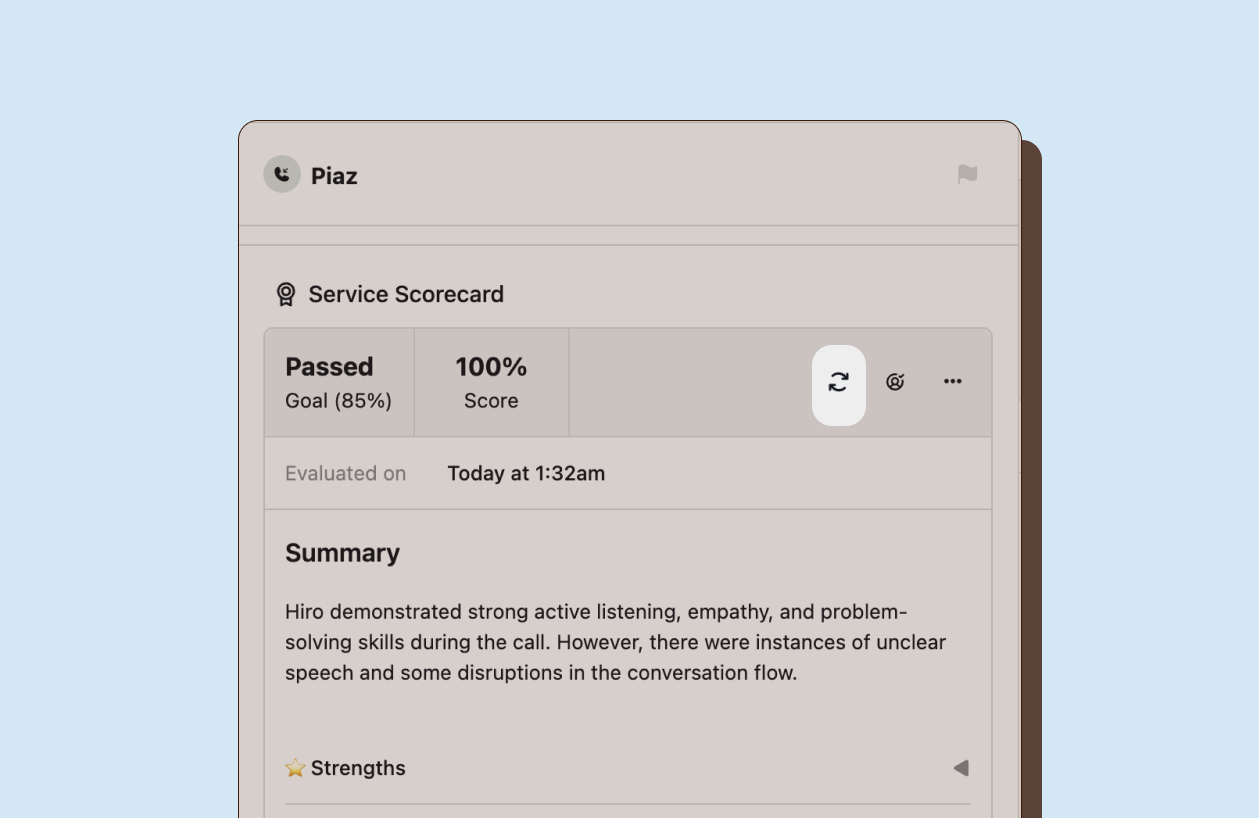
From an interaction’s evaluation panel, click the Re-evaluate button next to the evaluation header. This queues that specific interaction for re-processing. The AI overwrites previous auto-scores with new ones based on your current scorecard configuration.
Cancel re-evaluation if you change your mind before processing begins. Once processing starts, you must wait for completion.
Re-evaluating in bulk
Section titled “Re-evaluating in bulk”When you want to update scores across many interactions at once after refining a scorecard, use the Explore view to re-evaluate in bulk. Select one or more interactions and choose Queue for Evaluation. This queues all selected interactions for re-processing with your current scorecard configuration.
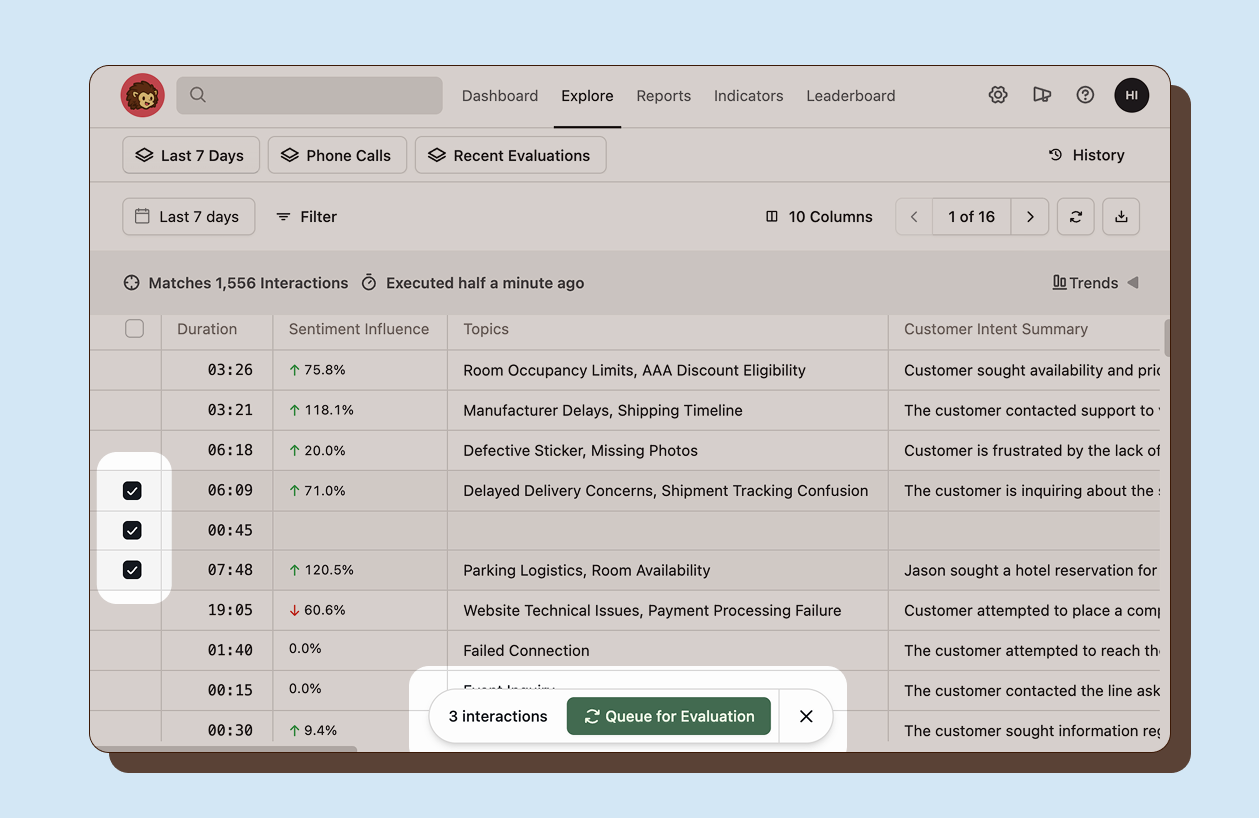
Re-evaluation is useful when you have refined criteria definitions and want updated scores that reflect your new quality standards.