

Scorecards
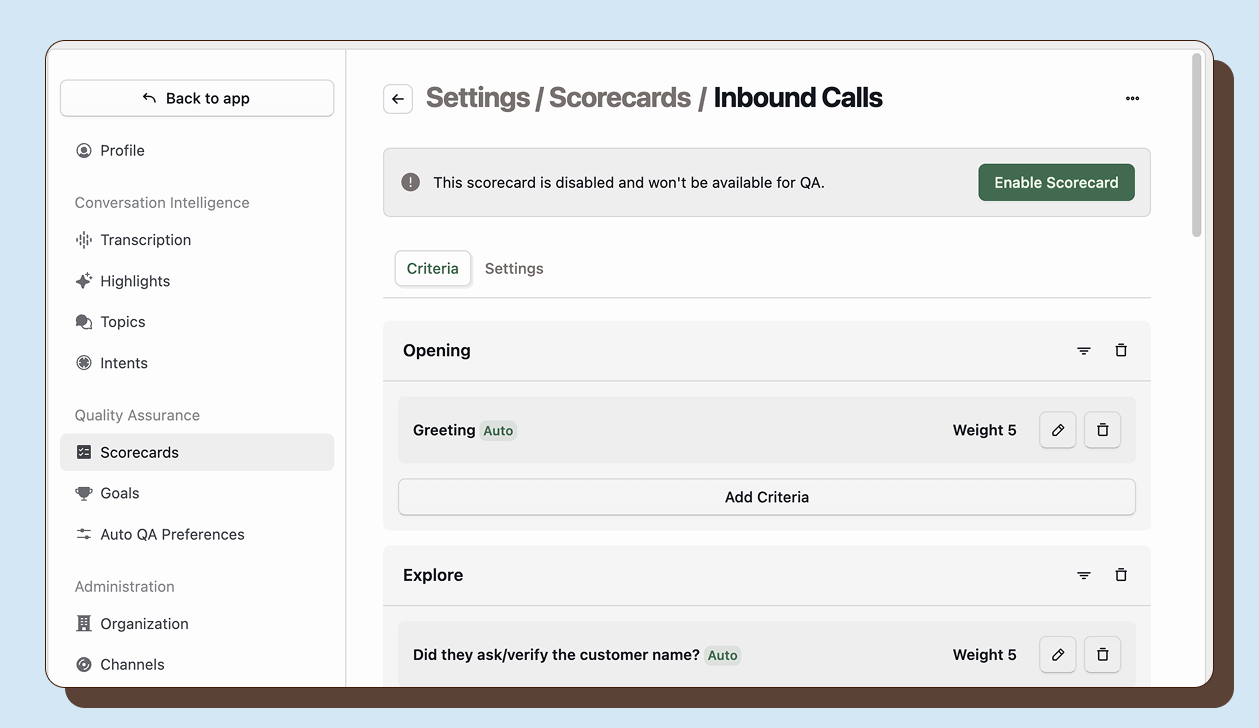
Build evaluation rubrics that define quality standards and configure which interactions they evaluate. Scorecards can be evaluated manually or automatically by Happitu’s Auto QA AI. The same scorecard can serve both purposes.
Creating scorecards
Section titled “Creating scorecards”Navigate to Settings > Scorecards and click New Scorecard. Enter a clear name that describes what this scorecard evaluates, such as “Customer Support Quality” or “Sales Call Effectiveness.” Add an optional description to explain when this scorecard should be used.
Scorecards are created in draft state. While in draft, you can build out sections and criteria. Only published scorecards can be used for evaluations.
Enabling scorecard for Auto QA
Section titled “Enabling scorecard for Auto QA”A scorecard must be published before it can evaluate interactions. To publish a scorecard, open it and click Enable Scorecard. The scorecard becomes active immediately and will be available for evaluations on matching interactions.
Scoping scorecards
Section titled “Scoping scorecards”Scorecards can evaluate all interactions or be limited to specific subsets based on workspace, channel, direction, or workflow.
Organization-wide vs workspace
Section titled “Organization-wide vs workspace”By default, scorecards are organization-wide and can evaluate any interaction. To limit a scorecard to specific workspaces, select a workspace in the scorecard settings. The scorecard will then only evaluate interactions from channels assigned to that workspace.
This is useful when different departments need different quality standards. Your Sales workspace might use a conversion-focused scorecard while your Support workspace uses a resolution-focused one.
Channel scoping
Section titled “Channel scoping”You can also explicitly include specific channels. For workspace scorecards, you can toggle channels on or off. This lets you apply different scorecards to different phone numbers, chat queues, or email addresses even within the same workspace.
Direction filtering
Section titled “Direction filtering”Limit scorecards to inbound calls only, outbound calls only, or both directions. This is useful when you have different expectations for proactive outreach versus reactive support.
Building your scorecard criteria
Section titled “Building your scorecard criteria”Within each section, click Add Criterion to create evaluation items. Each criterion needs:
- Name: What is being evaluated (e.g., “Agent greeted customer”)
- Scale: The rating options (see below)
- Definition: Detailed explanation of what meets the standard
- Weight: How much this criterion contributes to the overall score (0-20)
Rating scales
Section titled “Rating scales”Happitu provides four scale types.
Binary
Section titled “Binary”👍 Met / 👎 Not Met
Simple pass/fail criteria where the standard is either achieved or not.
3-Point
Section titled “3-Point”😄 Met / 😐 Partially Met / 🙁 Not Met
For criteria where partial achievement is possible and meaningful.
4-Point
Section titled “4-Point”🤩 Exceeds / 😄 Meets / 😕 Needs Improvement / 😠 Not Met
Allows for scoring both failures and exceptional performance, with a negative score for serious failures.
5-Point
Section titled “5-Point”🤩 Exceeds / 😄 Meets / 😐 Approaches / 😕 Needs Improvement / 😠 Not Met
Most granular evaluation with clear progression steps.
Each scale point maps to a percentage score for overall calculation. Met/Exceeds typically equals 100%, while lower scores map to partial percentages.
Weights
Section titled “Weights”Weights determine how much each criterion contributes to the overall evaluation score. Increase weights for critical criteria that should have more impact on the final score. Weights can range from 0 to 20 in 0.25 increments.
A criterion with weight 2 counts twice as much as weight 1. A criterion with weight 0 is evaluated but does not affect the overall score. Use weight 0 for informational criteria you want to track but not penalize.
Tuning Auto QA
Section titled “Tuning Auto QA”Direct the AI clearly
Section titled “Direct the AI clearly”Tell Auto QA exactly when to mark criteria as Met, Not Met, or Not Applicable. The AI uses your definitions to make these determinations, so be explicit about what constitutes each outcome.
Met defines the specific requirement clearly. “Agent stated their name, company name, and offered assistance.”
Not Met describes what missing the standard looks like. “Agent did not provide all three greeting elements.”
Not Applicable explains when the criterion should be skipped. “Mark Not Applicable if the call ended before an opening could occur.”
Reserve Not Applicable for structural reasons the criterion could not apply. If the criterion could apply but the agent failed to meet it, score it appropriately low. Consistent Not Applicable usage is critical for accurate reporting.
Use the right scale for AI evaluation
Section titled “Use the right scale for AI evaluation”Binary scales work best for clear yes or no requirements. The AI easily determines if a compliance statement was made or not.
3-Point scales suit criteria with partial credit. Define what Partially Met means specifically—“Agent mentioned two of three required disclosures.”
4-Point and 5-Point scales require more granular definitions. Specify what distinguishes Meets from Exceeds or Approaches so the AI can differentiate consistently.
Set context filters
Section titled “Set context filters”Prevent the AI from evaluating criteria when they do not apply. Use context filters to restrict criteria to specific interaction types, tags, or outcomes. This reduces false negatives and improves accuracy.
Test and iterate
Section titled “Test and iterate”Run Auto QA on sample interactions and compare to human scores. When the AI disagrees with human judgment, refine your definitions. Look for patterns—consistent errors mean unclear guidance.