

Improving transcription
Teach Happitu the words and phrases that matter to your business so transcriptions capture them accurately.
Why custom vocabulary matters
Section titled “Why custom vocabulary matters”Happitu uses automatic speech recognition to transcribe voice interactions. While this works well for common words, specialized terminology often transcribes incorrectly. Company names get misspelled, product names become generic words, and industry jargon gets lost entirely.
Custom vocabulary solves this by giving the transcription service hints about the words you care about. When Happitu encounters a word in your vocabulary during transcription, it prioritizes recognizing that word correctly over similar-sounding alternatives.
What to add to your vocabulary
Section titled “What to add to your vocabulary”Focus on words that are unique to your business and frequently appear in conversations. Good candidates include company names, product names, technical terms, competitor names, and industry-specific acronyms. For example, a software company might add “Zendesk” to ensure it does not transcribe as “Zen desk,” or a healthcare provider might add medication names that patients mention.
Avoid adding common dictionary words. The transcription service already handles everyday language well. Adding too many generic terms can actually reduce accuracy by creating false matches.
Adding words
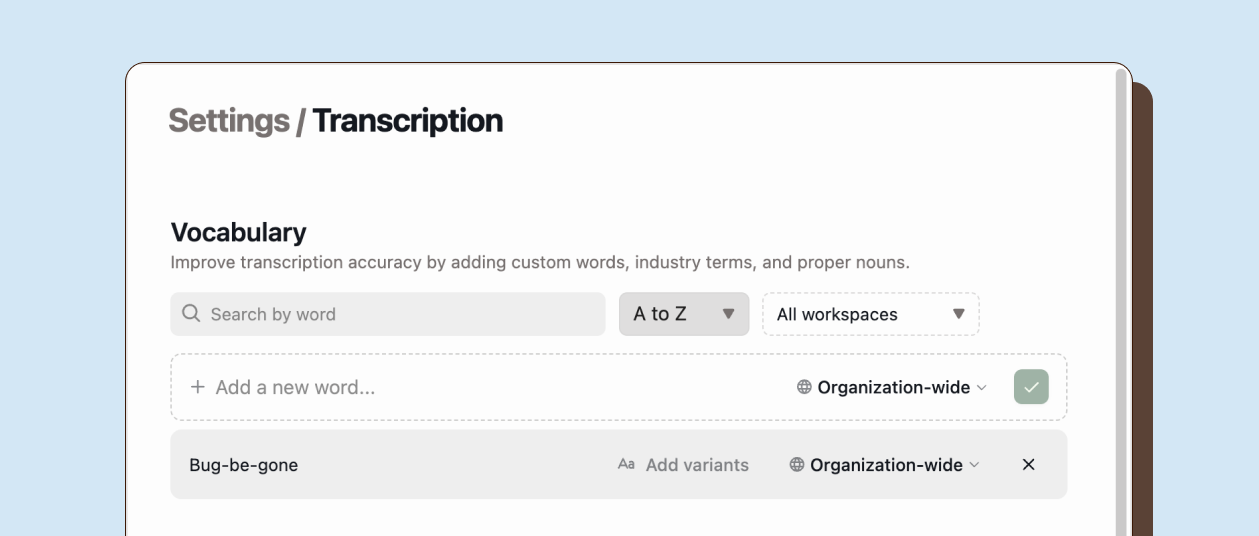
Section titled “Adding words”Navigate to Settings > Transcription to access your vocabulary.
The vocabulary interface shows your current words and provides an input field to add new ones. Type a word and press Enter or click the checkmark to save it. Each word can be scoped either organization-wide, making it available across all your workspaces, or limited to a specific workspace for department-specific terminology.
Organization-wide scope works well for company names and products that everyone discusses. Workspace scope suits specialized terms that only certain teams use, like technical jargon for engineering support or medical terminology for healthcare teams.
Best practices
Section titled “Best practices”- Start with your most problematic words. Review recent transcripts and identify terms that consistently transcribe incorrectly. Add those first and monitor whether accuracy improves.
- Add replacements based on real usage patterns. Check what variations actually appear in your transcripts rather than guessing.
- Review your vocabulary periodically. Remove outdated product names when they are deprecated. Add new terms as your product line expands. This keeps the transcription service aligned with your current business language.
- Changes apply to future transcriptions only. Existing transcripts retain their original text. If you need historical accuracy, you would need to reprocess those interactions.