

Connect Happitu to an AI assistant
Happitu’s Model Context Protocol (MCP) server gives supported AI assistants read-only access to interaction insights, quality evaluations, and transcripts. The assistant can analyze only the organizations and data your Happitu account is permitted to view.
Before you start
Section titled “Before you start”You need:
- An active Happitu account
- Permission to view the interactions or evaluations you want to query
- An MCP client that supports remote servers and OAuth, such as Claude or Codex
Connect with Claude
Section titled “Connect with Claude”- Open Claude.
- Select the + next to the prompt, then select Manage connectors.
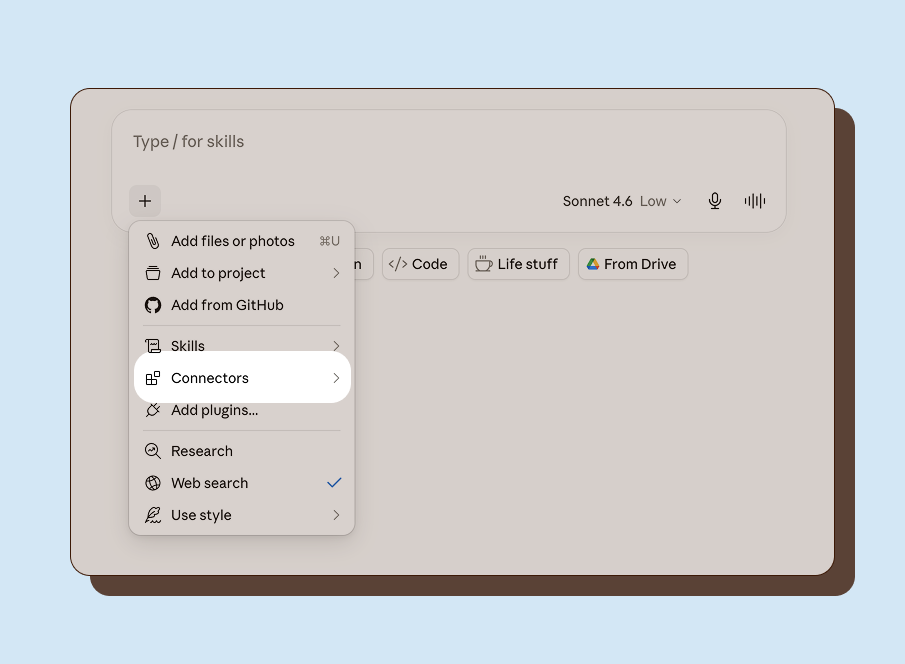
- Select Add custom connector.
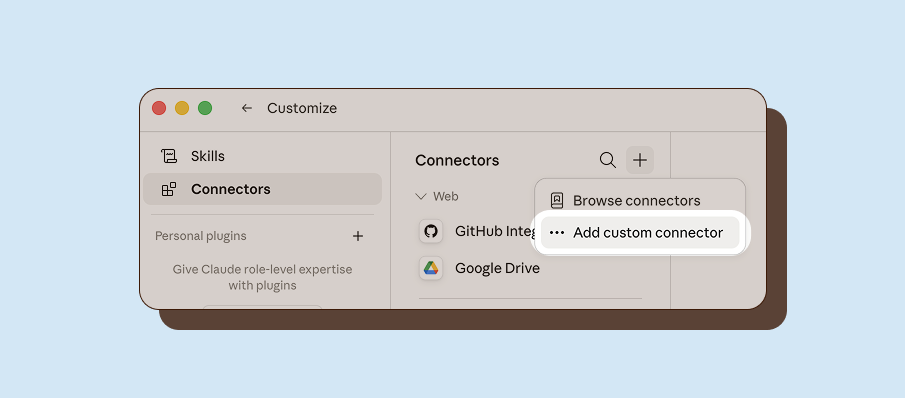
- Enter the following details:
- Name: Happitu
- URL:
https://quokka.happitu.com/v1/mcp
- Sign in to Happitu when prompted.
- Choose the organization to connect and select Allow access.
Claude can now use Happitu tools in new conversations. The connection is read-only and uses your existing Happitu permissions.
Connect with Codex
Section titled “Connect with Codex”The ChatGPT desktop app, Codex CLI, and Codex IDE extension share MCP configuration for the same Codex host.
Use the desktop app
Section titled “Use the desktop app”- Open Settings → Plugins.
- Select the MCPs tab, then select Add → Custom MCP.
- Enter the following details:
- Name: Happitu
- Type: Streamable HTTP
- URL:
https://quokka.happitu.com/v1/mcp
- Leave Bearer token env var and Headers empty, then save the server.
- Return to the MCP server list and select Authenticate for Happitu. This option appears after the server is saved.
- In the browser window that opens, sign in to Happitu, choose the organization to connect, and select Allow access.
- Return to the desktop app and restart it if prompted.
In the composer, enter /mcp to verify that Happitu and its tools are connected. The connection is read-only and uses your existing Happitu permissions.
If the Authenticate action does not open the sign-in flow, authenticate from a terminal and then restart the desktop app:
codex mcp login happituUse the CLI
Section titled “Use the CLI”-
Add Happitu as a remote MCP server:
Terminal window codex mcp add happitu --url https://quokka.happitu.com/v1/mcp -
Start the OAuth login flow:
Terminal window codex mcp login happitu -
In the browser window that opens, sign in to Happitu, choose the organization to connect, and select Allow access.
-
Confirm that the server is configured:
Terminal window codex mcp list
In the Codex terminal interface, enter /mcp to view the active server and its tools. You can now ask Codex questions about your Happitu interactions and evaluations.
Configure manually
Section titled “Configure manually”Codex stores MCP configuration in ~/.codex/config.toml. You can add Happitu manually:
[mcp_servers.happitu]url = "https://quokka.happitu.com/v1/mcp"After editing the file manually, run codex mcp login happitu to authenticate. For project-only configuration, use .codex/config.toml in a trusted project instead. See OpenAI’s MCP documentation for more configuration options.
Test the connection
Section titled “Test the connection”Prompt:
List the available Happitu insight dimensions.The client should call Happitu and return the available dimensions, filters, evaluation dimensions, and highlights.
You can also try:
- “Compare the top interaction topics by channel for the last 30 days.”
- “Which quality criteria have the lowest average scores?”
- “Show examples of negative interactions and link to the supporting interactions.”
Available capabilities
Section titled “Available capabilities”Depending on your role, an MCP client can:
- Break down and compare interactions by intent, topic, signal, outcome, agent, channel, group, method, highlight, or quality result.
- Resolve names such as agents, channels, scorecards, and criteria before filtering.
- Return representative interactions with direct links back to Happitu.
- Inspect transcript utterances for supporting evidence.
- Analyze evaluation performance by scorecard, section, criteria, agent, channel, or group.
Connect with an API token
Section titled “Connect with an API token”OAuth is recommended because it handles sign-in and authorization automatically. If your MCP client supports custom authorization headers instead:
- In Happitu, open Settings → API Tokens.
- Create an MCP token and copy it immediately. The token is displayed only once.
- Configure the remote server URL as
https://quokka.happitu.com/v1/mcp. - Add the header
Authorization: Bearer YOUR_TOKEN.
Treat API tokens like passwords. Revoke a token from Settings → API Tokens if it is exposed or no longer needed.
Troubleshooting
Section titled “Troubleshooting”If your client cannot connect, confirm that:
- The URL is exactly
https://quokka.happitu.com/v1/mcp - You completed the Happitu authentication flow
- Your Happitu role can view the data you are asking about
- You disconnected and reconnected the server if authentication failed or expired
If Happitu tools still do not appear, remove the connector and add it again. Organization administrators can also revoke an old token in Settings → API Tokens before reconnecting.