

Display options
Customize interaction order and columns that appear in Explore.
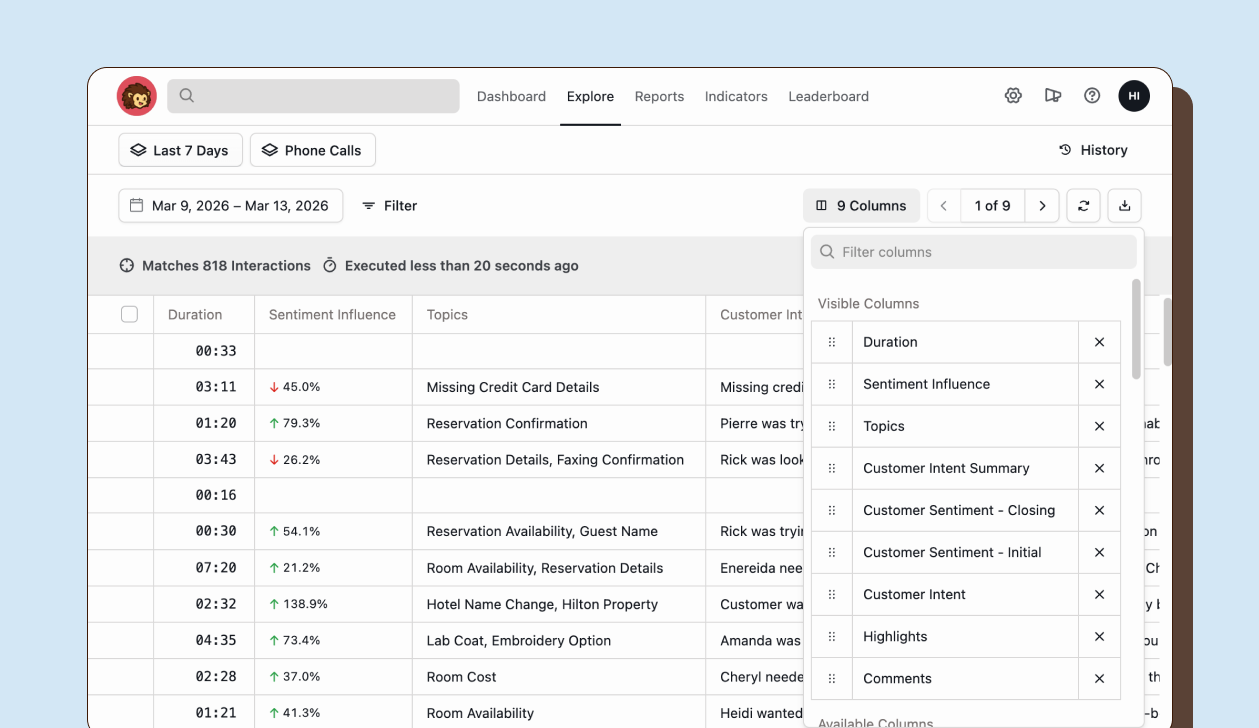
Customizing columns
Section titled “Customizing columns”Choosing columns
Section titled “Choosing columns”Select which data columns appear by clicking the Columns button next to the page navigation. The column configurator shows two sections:
- Visible Columns: Currently displayed columns
- Available Columns: Columns you can add
Click the + button next to an Available Column to add it, or click x next to a Visible Column to remove it. Alternatively, drag and drop fields between the two lists to add or remove columns from your Explore view.
Reordering columns
Section titled “Reordering columns”Arrange visible columns in your preferred order:
- Hover over a visible column in the configurator.
- Click and hold the drag handle (six dots icon).
- Drag to the desired position in the list.
- Release to place the column in its new position.
Columns appear in Explore from left to right in the order they appear in the Visible Columns list.
Available columns
Section titled “Available columns”Interaction fields
Section titled “Interaction fields”| Column | Description |
|---|---|
| Channel | Source channel (phone, chat, email) |
| Contact Method | Integration method used |
| Customer # | Customer phone number or identifier |
| Handled By | Representative who handled the interaction |
| Customer Name | Customer’s name |
| Duration | Total interaction length |
| Talk Time | Actual speaking time |
| Wrap Time | After-call work time |
| Total Hold Time | Total time customer was on hold |
| Total Holds | Number of hold instances |
| Started At | When the interaction began |
| Imported At | When the interaction was imported |
| Is Outbound | Whether the call was outbound |
| Is Voicemail | Whether the interaction is a voicemail |
| Interaction ID | Unique interaction identifier |
| External ID | External system identifier |
| Reference Number | Reference or ticket number |
| Message Count | Number of messages (chat/email) |
| Workspace | Workspace assignment |
| Flag | Applied flags |
| Product or Service | Product or service mentioned |
| Resolution | Resolution summary |
Sentiment fields
Section titled “Sentiment fields”| Column | Description |
|---|---|
| Customer Sentiment | Overall sentiment rating |
| Customer Sentiment - Initial | Sentiment at conversation start |
| Customer Sentiment - Medial | Sentiment during conversation |
| Customer Sentiment - Closing | Sentiment at conversation end |
| Sentiment Influence | Sentiment trend direction |
Conversation Intelligence fields
Section titled “Conversation Intelligence fields”| Column | Description |
|---|---|
| Summary | AI-generated conversation summary |
| Topics | Detected conversation topics |
| Customer Intent | Detected customer intent |
| Customer Intent Summary | Intent description |
| Highlights | Auto-detected highlights |
| Customer Reactions - Initial | Initial customer reactions |
| Customer Reactions - Medial | Mid-conversation reactions |
| Customer Reactions - Closing | Closing reactions |
Evaluation fields
Section titled “Evaluation fields”| Column | Description |
|---|---|
| Evaluation Score | Overall quality score (AQS) |
| Has Dispute | Whether evaluation has an active dispute |
| Scorecard | Scorecards applied |
| Criteria | Specific criteria scores |
Activity fields
Section titled “Activity fields”| Column | Description |
|---|---|
| Last Commented At | When last comment was added |
| Comments | Comment count |
Clustering fields
Section titled “Clustering fields”These columns appear if the clustering feature is enabled:
| Column | Description |
|---|---|
| Signals | Detected signals |
| Outcome | Interaction outcome |
| Missed Opportunities | Missed opportunity indicators |
| Qualified Lead | Lead qualification status |
Sorting
Section titled “Sorting”Sort options
Section titled “Sort options”Order interactions by any sortable column:
- Click a column header to sort by that column.
- Click again to reverse the sort order.
- An arrow appears showing sort direction (▲ ascending, ▼ descending).
Sortable columns include:
- Started At (default, newest first)
- Duration, Talk Time, Wrap Time, Total Hold Time
- Customer Sentiment fields (overall, initial, medial, closing)
- Sentiment Influence
- Evaluation Score
- Customer Intent, Outcome
- Is Outbound, Is Voicemail
- Contact Method
- External ID, Reference Number
- Imported At, Last Commented At
- Message Count
- Product or Service, Resolution
Non-sortable columns:
- Channel, Handled By, Workspace, Flag
- Topics, Highlights, Summary
- Customer Reactions, Signals
- Scorecard, Criteria, Comments
Note: Some columns like “To address” support sorting but cannot be added as display columns. These fields sort using the filter controls rather than column headers.
Display best practices
Section titled “Display best practices”Optimizing your view
Section titled “Optimizing your view”- Show essential columns only: Too many columns reduce readability
- Group related columns: Arrange columns logically (for example, place all time fields together)
- Sort by priority: Place most important columns first by reordering
- Use search: Quickly find specific columns in the configurator
- Save common configurations: Create saved queries to preserve column setups
Recommended setups
Section titled “Recommended setups”For QA reviewers:
- Columns: Started At, Handled By, Duration, Evaluation Score, Has Dispute, Channel, Customer Sentiment
- Sort: Started At descending
- Focus: Evaluation status and quality metrics
For supervisors:
- Columns: Started At, Handled By, Customer Sentiment, Evaluation Score, Channel, Flag, Duration
- Sort: Evaluation Score ascending (lowest first)
- Focus: Coaching opportunities and team performance
For agents:
- Columns: Started At, Channel, Duration, Evaluation Score, Flag, Customer Sentiment
- Sort: Started At descending
- Focus: Personal performance and recent interactions
For analysts:
- Columns: Started At, Channel, Customer Intent, Topics, Outcome, Duration, Sentiment Influence
- Sort: Started At descending
- Focus: Conversation intelligence and trends