

Profile
Your profile in Settings > Profile is where you personalize how other team members will see you in your Happitu organization.
Changing your profile image
Section titled “Changing your profile image”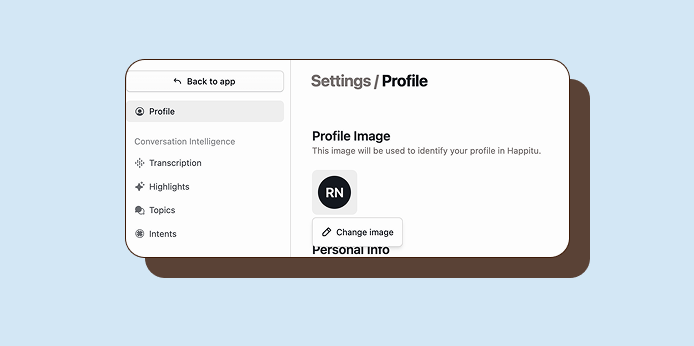
The default avatar shows your first and last initials. To add a new photo, hover over the avatar until the pencil icon shows up, and click on it. A file dialog will show up for you to select the photo you want to update.
To remove your photo, hover over the avatar, click on the pencil icon and click Remove image.
Personal info
Section titled “Personal info”Set how your name appears throughout Happitu:
- First name: Your first name
- Last name: Your last name
- What should Happitu call you?: A friendly name that you are commonly addressed by. This is helpful for Auto QA if you greet customers with a different name. If left blank, Happitu uses your first name.
Job title
Section titled “Job title”Add your job title or role to help teammates understand your position.
Email address
Section titled “Email address”Your email address is tied to your organization membership and cannot be changed from your profile. If you are an administrator, you may update a member’s email in Settings > Members.
Changing your email may affect login if you use email-based authentication.