

Filters
Refine interaction results with filters to show only relevant conversations based on properties like channel, agent, score, and more.
Overview
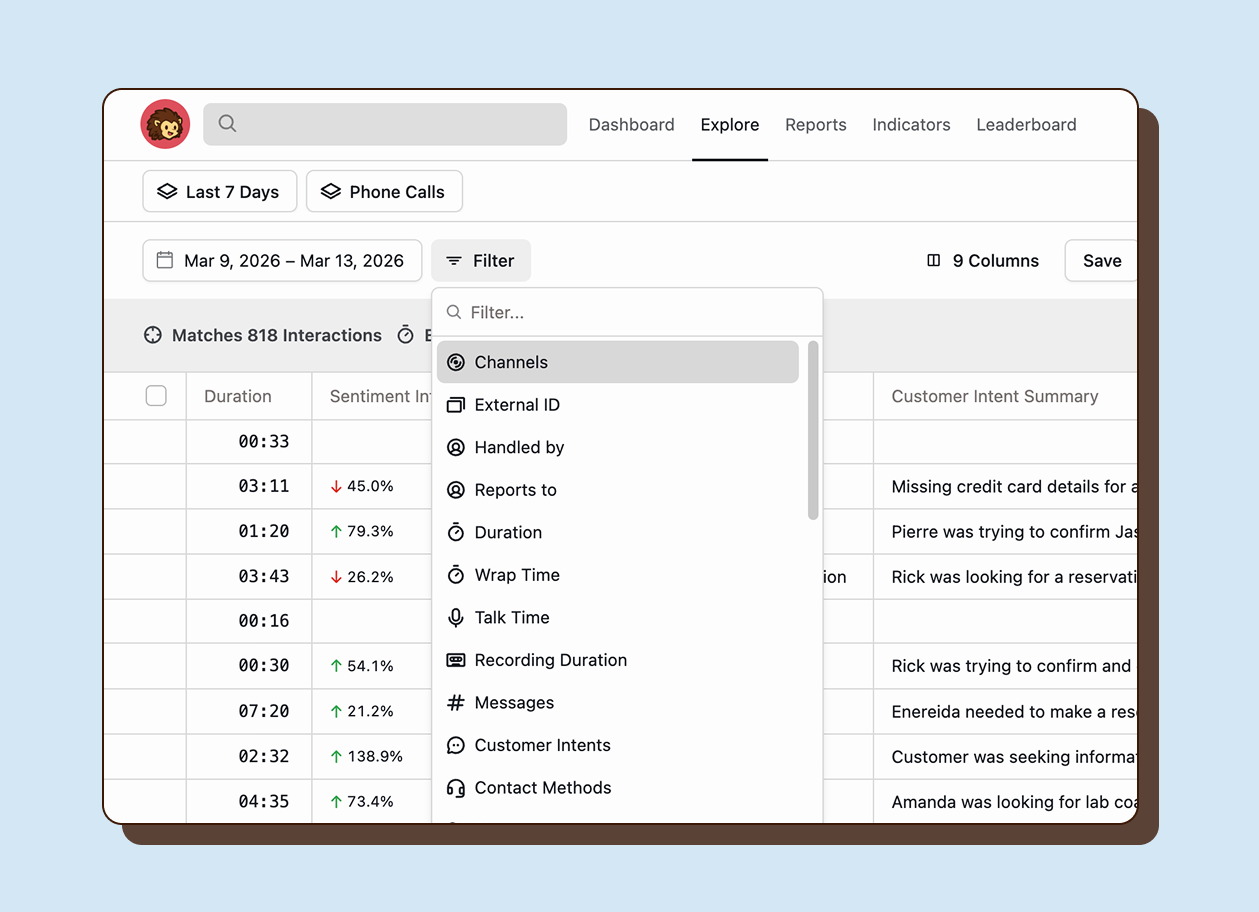
Section titled “Overview”Filters let you refine the interaction list to show only relevant conversations. Apply filters to any view in Happitu and filter by almost any interaction property.
Use filters to:
- Narrow to specific channels or agents
- Find unevaluated interactions
- Identify coaching opportunities
- Track compliance
- Build custom views
Basics
Section titled “Basics”Apply filters
Section titled “Apply filters”Click the Filter button next to the date range. You’ll see a menu of filter categories that you can apply to the current view. Move through the menu or use free text search to find the exact filter you need.
Filter categories
Section titled “Filter categories”Interaction metadata
Section titled “Interaction metadata”| Filter | Description |
|---|---|
| Channels | Phone, chat, email sources |
| Contact Methods | Specific integration methods |
| Direction | Inbound or outbound |
| Duration | Total interaction length |
| Talk Time | Actual speaking time |
| Wrap Time | After-call work time |
| Recording Duration | Length of recording |
| Messages | Message count (for chat/email) |
| To address | DNIS or destination address |
People and organization
Section titled “People and organization”| Filter | Description |
|---|---|
| Handled by | Agent who handled the interaction |
| Reports to | Agents under a supervisor |
| Groups | Team or department |
| Workspaces | Scoped environments |
Quality and evaluation
Section titled “Quality and evaluation”| Filter | Description |
|---|---|
| Scorecards | Evaluated with specific scorecards |
| Scorecard Criteria | Specific criteria scores |
| Evaluation Score (AQS) | Quality score ranges |
Conversation Intelligence
Section titled “Conversation Intelligence”| Filter | Description |
|---|---|
| Customer Intents | Detected customer goals |
| Highlights | Auto-detected moments |
| Topics | Conversation subjects |
| Customer Reactions | Sentiment at conversation stages |
| PII Detections | Sensitive information found |
Workflow
Section titled “Workflow”| Filter | Description |
|---|---|
| Workflows | Workflow assignments |
| Signals | Detected signals |
| Outcomes | Interaction outcomes |
| Missed Opportunities | Missed signals |
| Qualified Lead | Lead qualification status |
| Filter | Description |
|---|---|
| Flag | Custom interaction flags |
Quick search filters
Section titled “Quick search filters”If you know the name of the property you want to filter, type it directly and the filter will appear as a choice. This saves you from clicking through categories.
Sentiment
Section titled “Sentiment”| Filter | Description |
|---|---|
| Overall positive sentiment | Customer expressed positive sentiment |
| Overall neutral sentiment | Customer expressed neutral sentiment |
| Overall negative sentiment | Customer expressed negative sentiment |
Quality
Section titled “Quality”| Filter | Description |
|---|---|
| Has evaluation | Interaction has any evaluation |
| Has auto evaluation | Auto QA evaluated |
| Has manual evaluation | Human evaluated |
| Has not been evaluated | Unevaluated interactions |
Dispute
Section titled “Dispute”| Filter | Description |
|---|---|
| Has dispute | Active disputes |
| No dispute | No active disputes |
Conversation Quality
Section titled “Conversation Quality”| Filter | Description |
|---|---|
| Is Voicemail | Voicemail interactions |
| Is Not Voicemail | Non-voicemail interactions |
| Has comments | Evaluator comments exist |
| Met dead air goal | Met dead air threshold |
| Missed dead air goal | Exceeded dead air threshold |
| Has agent overtalk | Interruptions detected |
| Met handle time goal | Within handle time target |
| Missed handle time goal | Exceeded handle time target |
Review Status
Section titled “Review Status”| Filter | Description |
|---|---|
| Reviewed | Evaluation reviewed by supervisor |
| Pending review | Awaiting review |
Build with operators
Section titled “Build with operators”Once you add a filter, you can refine it with operators. For instance, for a filter that says Handled By is John, clicking on Handled By will do nothing, clicking on is will give you the option to change the operator to is not, and clicking on John will show a selectable list to modify the handled by filter.
We support the following operators in Happitu, which will appear depending on the type of filter and selections:
| Operator | Description |
|---|---|
| is / is not | Equals or does not equal a single value |
| is any / is neither | Equals or does not equal multiple values |
| greater than or equal / less than or equal | Numeric range filters |
| is between | Within a numeric range |
Removing filters
Section titled “Removing filters”Remove a single filter:
- Click the X on the filter button.
Filter strategies
Section titled “Filter strategies”For QA reviewers:
Last 7 days + Has not been evaluated + Your team's groupsFor coaching:
Evaluation Score less than 80% + Has evaluation + Specific agentFor compliance:
Has dispute + Last 30 daysFor Auto QA validation:
Has auto evaluation + Scorecard is [specific]Common filter patterns
Section titled “Common filter patterns”Unevaluated queue:
Last 7 days + Has not been evaluated + Your channelLow scores for coaching:
Last 30 days + Evaluation Score less than 75% + Has evaluationEscalations:
Has dispute + Last 14 daysAuto QA review:
Has auto evaluation + Last 3 days