

Flags
Use flags to mark escalations, identify training examples, note compliance issues, or flag any interaction that needs follow-up. Once flagged, you can filter your interaction list to show only flagged items, making it easy to find the conversations that matter most.
Creating flags
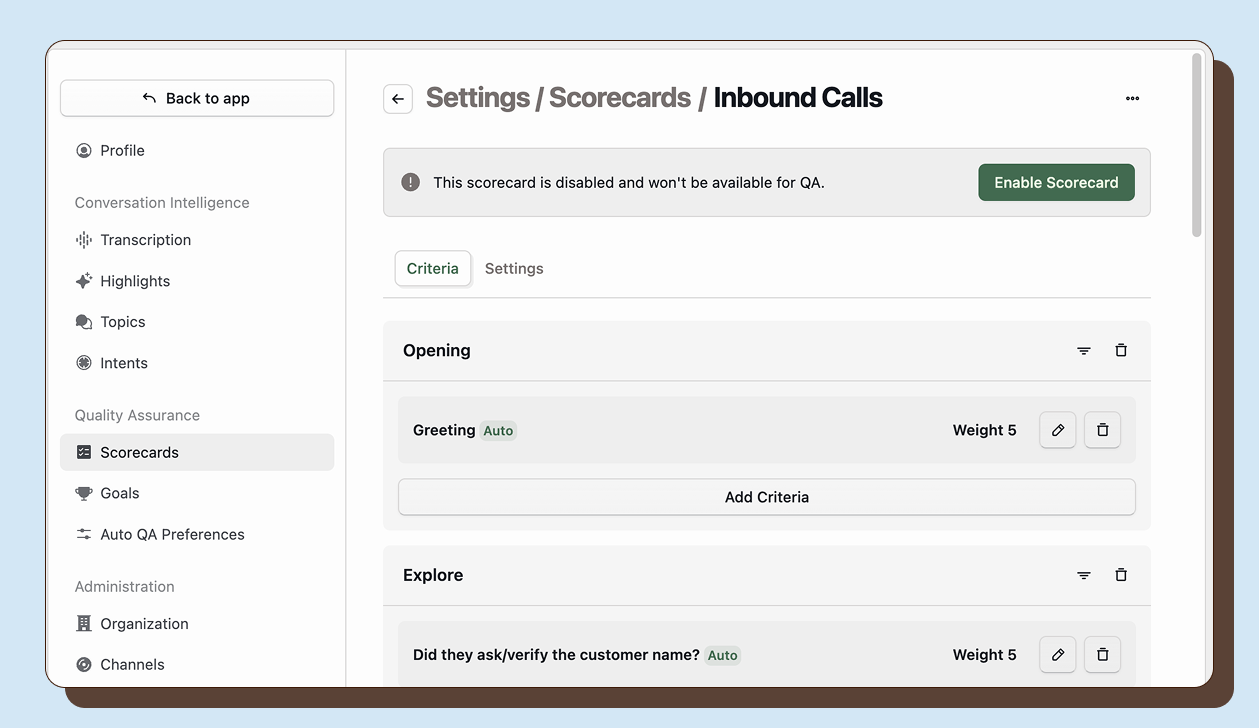
Section titled “Creating flags”Navigate to Settings > Flags and click New Flag. Enter a name that describes when the flag should be used, such as “Escalation” or “Training Example.” The flag is created with a randomly assigned color. You can edit the name later if needed.
Applying flags to interactions
Section titled “Applying flags to interactions”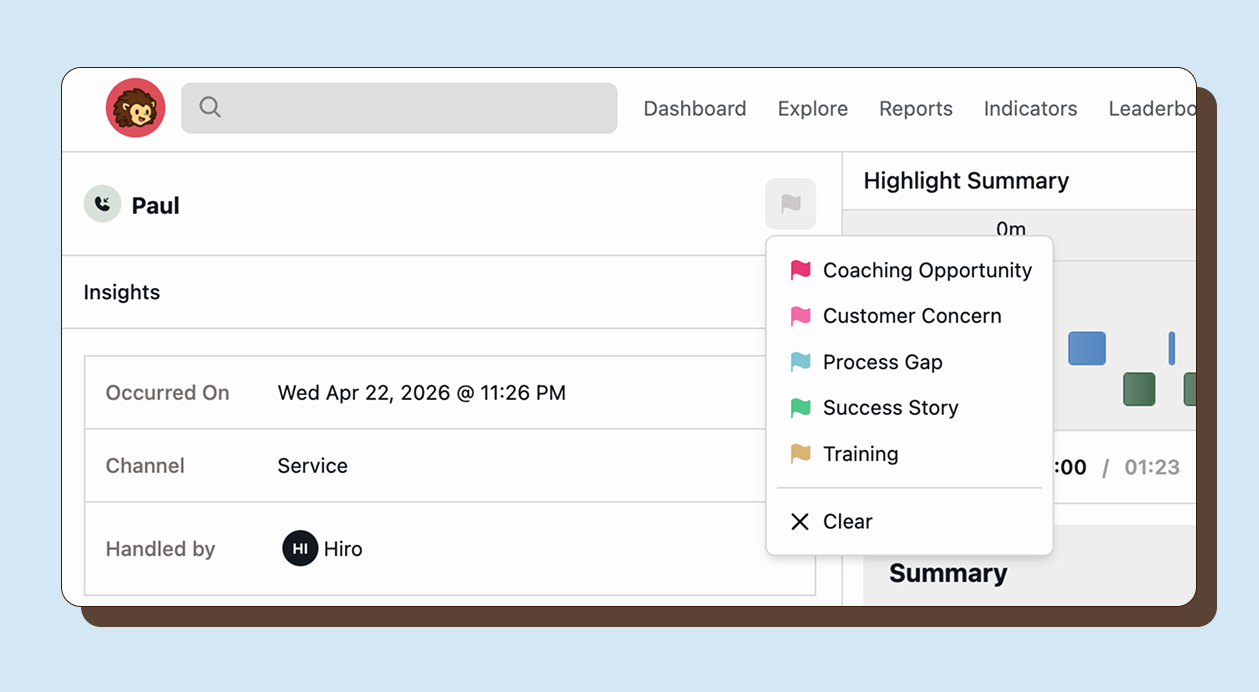
To flag an interaction, navigate to an interaction and click the flag icon at the top of the screen. Select the flag you want to apply from the dropdown. The flag icon changes to show the selected color, making it immediately visible that this interaction has been flagged.
Each interaction can have only one flag at a time. If you select a different flag, it replaces the previous one. To remove a flag entirely, select Clear from the dropdown menu. The flag icon returns to its default appearance.
Filtering by flags
Section titled “Filtering by flags”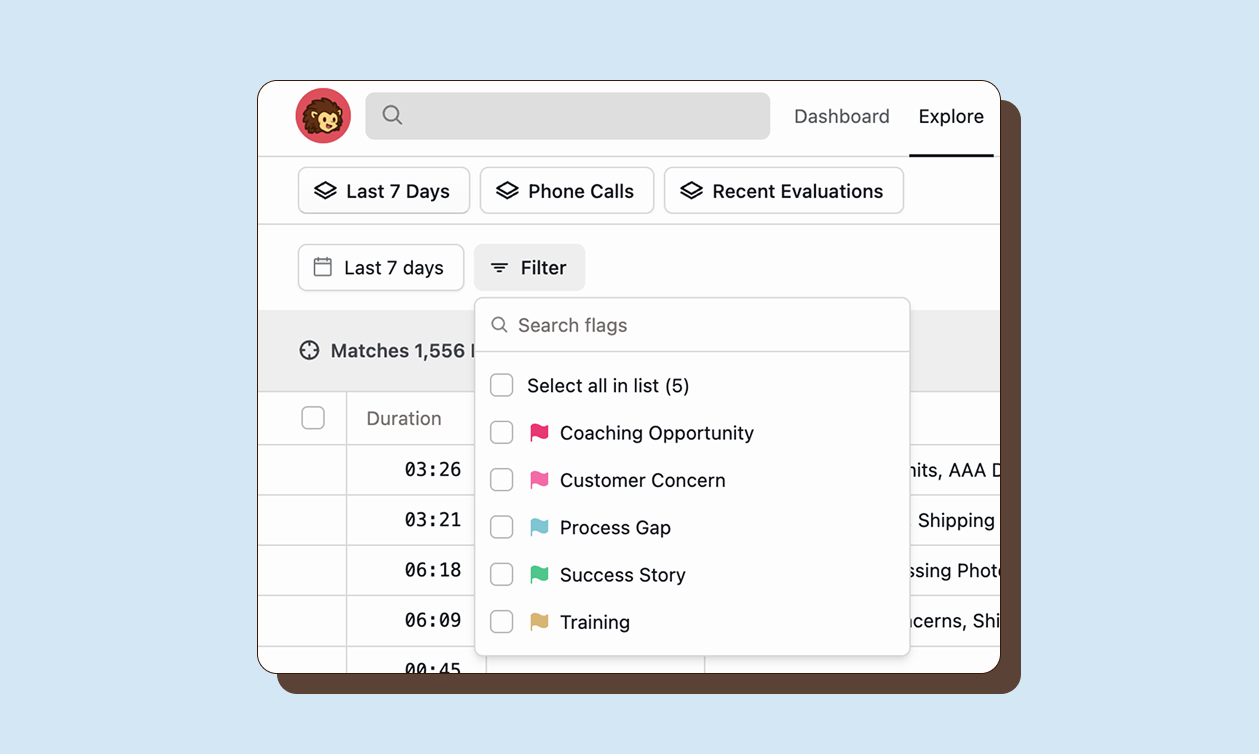
Once you have flagged interactions, you can filter to show only those items. In Explore, use the Flag filter to select one or more flags. The interaction list updates to show only interactions with those flags applied.
This makes flags useful for workflows. You might flag interactions that need supervisor review, then filter to see all flagged items at once. Or you might track compliance issues by flagging them, then review all compliance flags weekly.